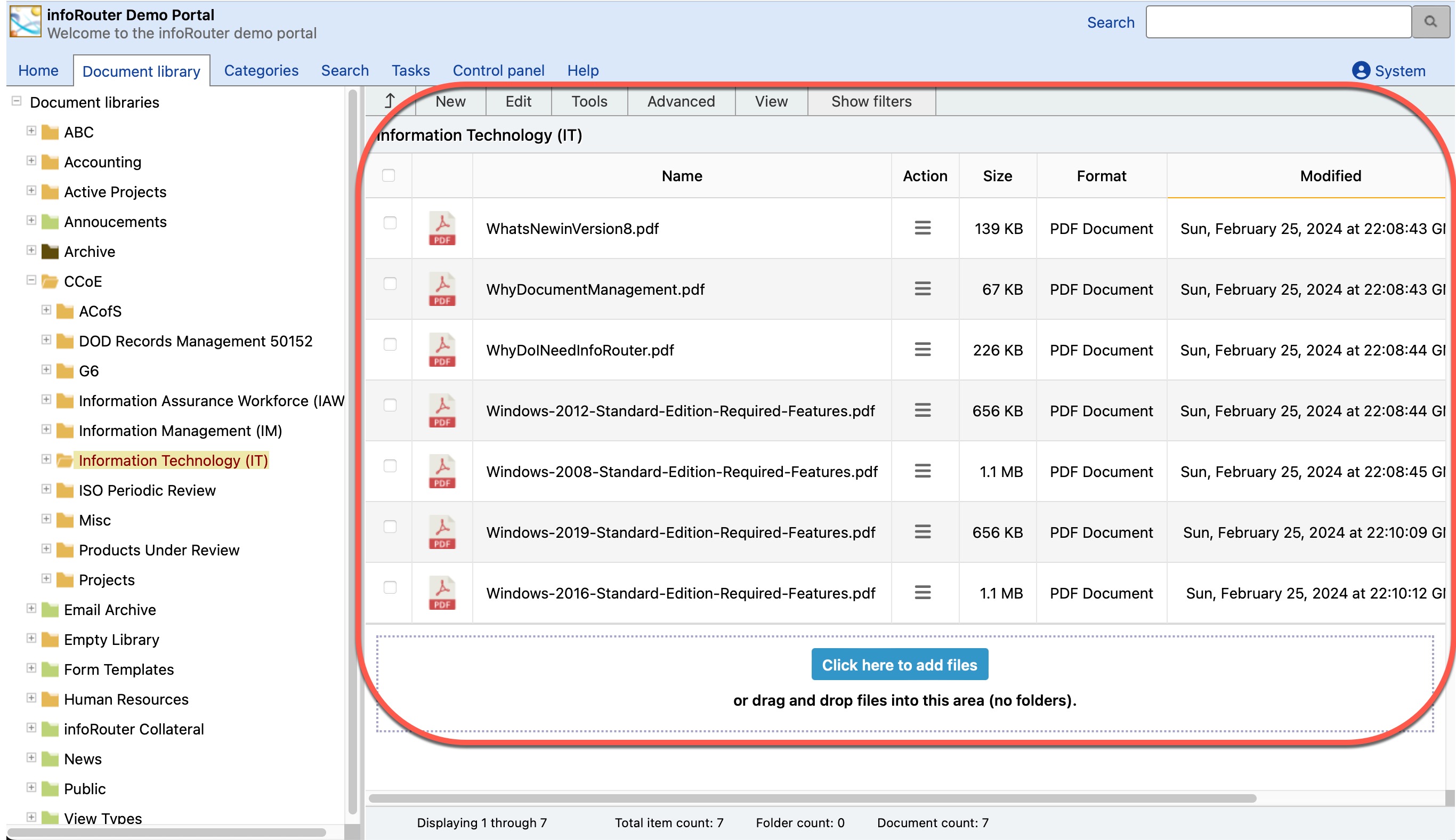
The infoRouter Work Area
infoRouter includes a portal interface that greets users. Depending on the options chosen by the creator of the portal, certain navigation options may or may not be available.
Familiar Interface
The infoRouter Document Library is designed to look and function similar to Microsoft Windows Explorer — folders on the left, files (documents) on the right.
Learn more about portals: infoRouter Portals
Navigation Tabs
To navigate effectively, take note of the following sections (tabs) of infoRouter:

| Tab | Description |
|---|---|
| Home | Navigate to your portal page |
| Document Library | View, edit, and create documents and folders |
| Categories | Access predefined searches (saved searches) to find documents matching specific criteria |
| Search | Search for documents and folders using Advanced Search or Saved Search options |
| My Tasks | View completed, pending, and overdue tasks (requires login) |
| Control Panel | Administrative functions (System Administrators and Library Managers only) |
| Help | Access help topics and documentation |
My Tasks Tab
The My Tasks tab only appears when you are logged in. It shows:
- Tasks assigned to you by other users
- Tasks you have assigned to others
- Completed, pending, and overdue tasks
Control Panel Access
The Control Panel tab is only visible to System Administrators and Library Managers. It provides administrative functions such as adding users, creating libraries, and managing user groups.
Main Panels
Library Panel
The Library Panel displays on the left side of the screen, showing all available libraries and their folders (sub-folders).

Understanding Libraries
All root-level folders are called libraries. Libraries serve as isolated work areas for different teams or projects.
Documents Panel
The Documents Panel displays on the right side of the screen, showing all documents in the currently selected folder.