User Profile
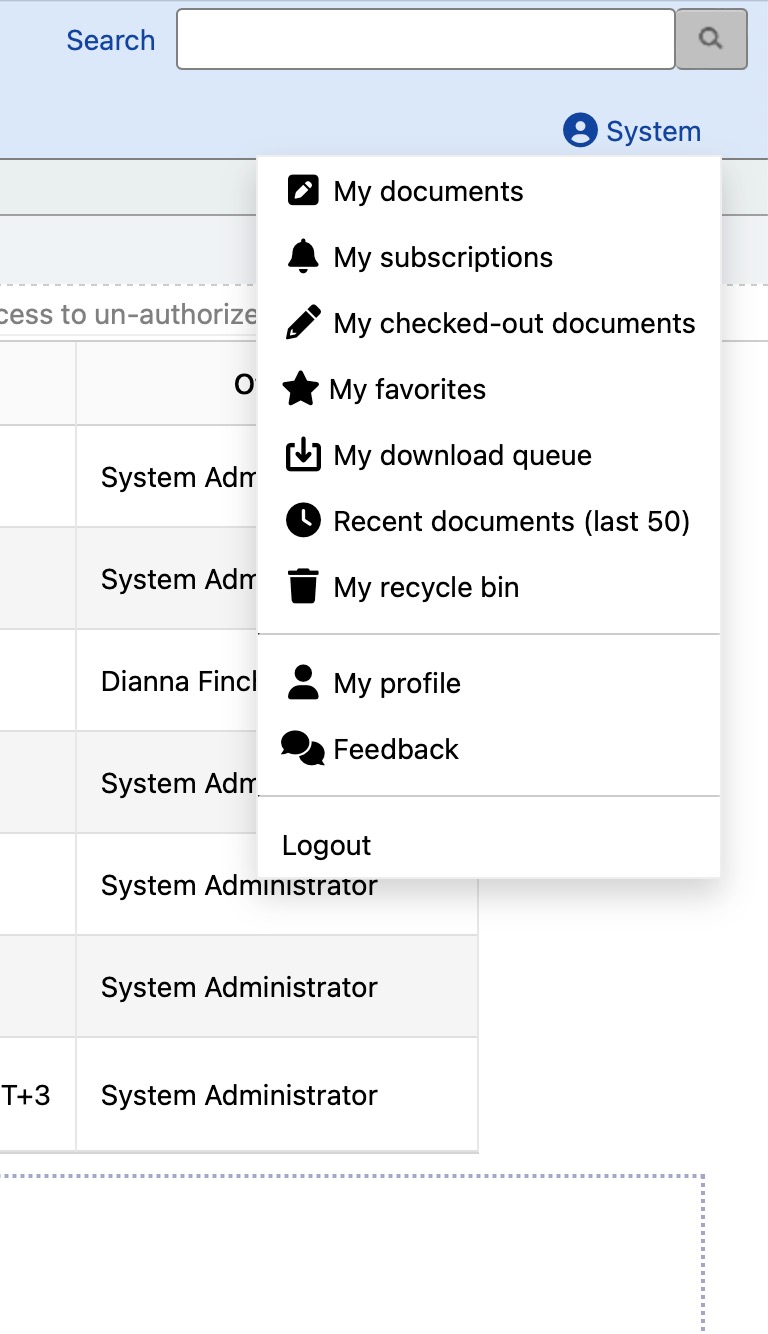
The User Profile screen contains information about your infoRouter account. Access it from your Personal Dashboard or, if you're an administrator, through User Management in the Control Panel.
Profile Sections
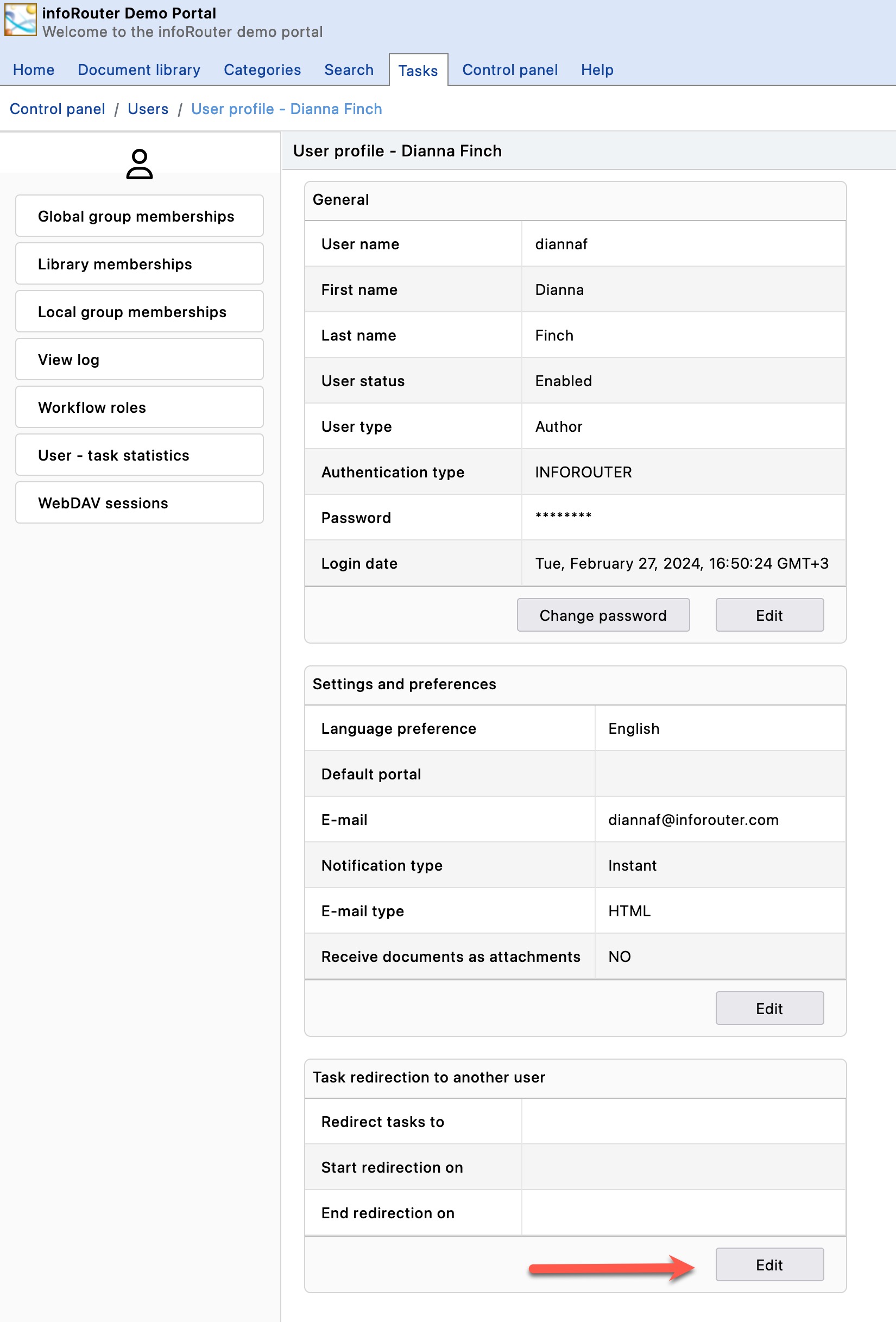
The User Profile screen has four main sections:
- General Profile — Basic account information
- Settings and Preferences — Personalization options
- Task Redirection — Delegate tasks during absence
- Profile Sidebar — Quick links to related information
General Profile
This section displays your basic account information.
Limited Editing
As a user, you can only change your password in this section. All other parameters are managed by the System Administrator or User Managers.
Changing Your Password
- Click the properties icon next to the password field
- Enter your new password
- Confirm the new password
- Click Save
Password Security
- Choose a password that is difficult to guess but easy to remember
- Usernames cannot be changed
- Even administrators cannot see your password
- If you forget your password, use the "Forgot Password" link or contact your System Administrator
Settings and Preferences
You have full control over these settings:
| Setting | Description |
|---|---|
| Language Preference | Sets the language for all infoRouter messages and labels |
| Default Portal | Portal you're redirected to after logging in |
| Email address for notifications | |
| Notification Type | How you receive notifications |
| E-mail Type | Format of email notifications |
| Attach Documents | Include documents in email notifications |
Notification Options
| Type | Description |
|---|---|
| None | Disable all email notifications |
| Instant | Receive notifications immediately as events occur |
| Daily | Receive a consolidated daily report of all notifications |
Email Format Options
| Format | Description |
|---|---|
| HTML | Rich formatted emails with styling |
| TEXT | Plain text emails |
Task Redirection
Redirect task assignments to another user during your absence (vacation, leave, etc.).
Important
Task redirection only applies to future task assignments. Existing tasks are not affected.
Profile Sidebar
The sidebar provides quick access to related information:
| Link | Description | Visibility |
|---|---|---|
| Global Group Memberships | Global user groups you belong to | Admin only |
| Library Memberships | Libraries you have access to | Admin only |
| Local Group Memberships | Local groups by library | All users |
| Subscriptions | Documents you're subscribed to | All users |
| Documents and Folders | Items you own | All users |
| Checked out documents | Documents currently checked out to you | All users |
| Authored documents | Documents you have authored | All users |
| View Log | Documents you have viewed | All users |
| Workflow Roles | Folders where you're assigned as reviewer | All users |
| Send welcome email | Send welcome email to new users | Admin only |