Selecting Columns to View
Customize the Documents Panel by selecting which columns to display. You can show all available fields or only the ones most relevant to your work.
Persistent Settings
Your column selections are remembered by infoRouter and will remain in effect until you change them.
How to Select Columns
Step 1: Navigate to a Folder
Open any folder in the Document Library where you want to customize the column view.
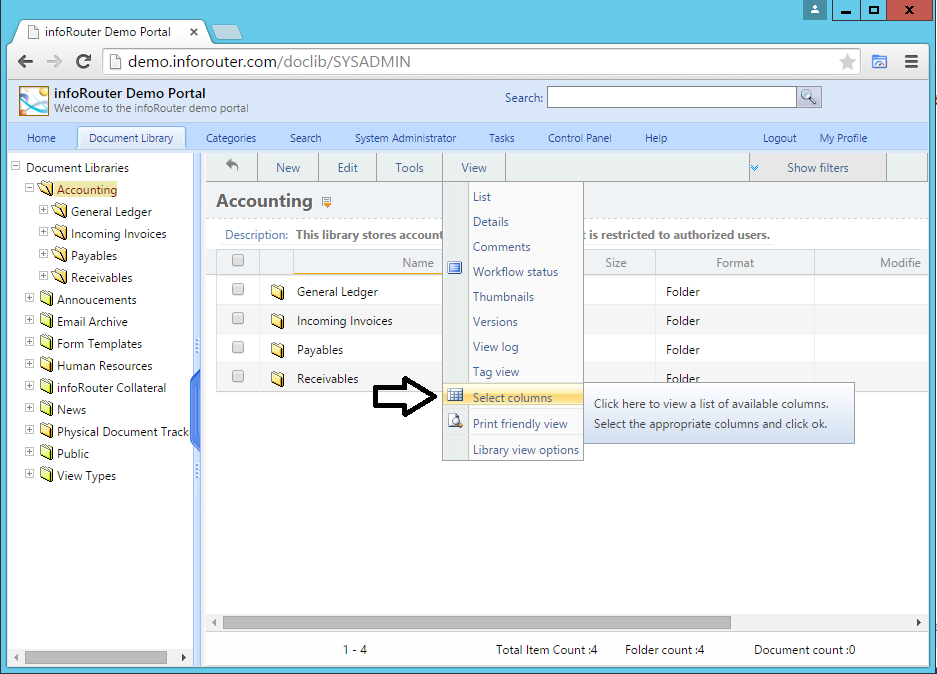
Step 2: Open Column Selector
Go to View → Select Columns from the menu.
Step 3: Choose Your Columns
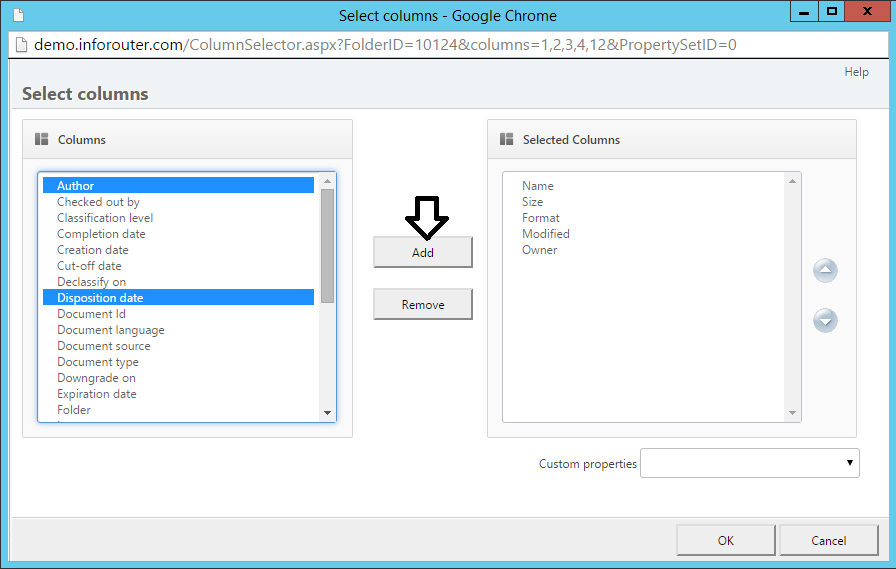
In the column selector window:
- Browse the list of available columns on the left
- Select the columns you want to display
- Click the Add button to add them to your view
- Use the Remove button to hide columns you don't need
- Click OK to apply your changes
Available Columns
Common columns you can display include:
| Column | Description |
|---|---|
| Name | Document file name |
| Size | File size |
| Type | Document type/extension |
| Modified | Last modification date |
| Created | Creation date |
| Author | Document author |
| Version | Current version number |
| Status | Check-out status |
| Custom Properties | Any custom metadata fields |