Moving Folders
When you move a folder, the entire contents — including all subfolders and documents — are moved to the new location.
What Gets Preserved
| Setting | Preserved? |
|---|---|
| Folder Rules | Yes |
| Custom Properties | Yes |
| Security Settings | Yes* |
Security Across Libraries
*Security settings are preserved, but may become unusable when moving folders across libraries.
Cross-Library Move Example
Consider this scenario:
- Jim has Full Control on a folder
- Mary moves the folder to a different library where Jim is not a member
- Result: Jim can no longer access the folder or its contents
- If Jim is made a member of the new library → Jim regains access
- If the folder is moved back → Jim's original access is restored
How to Move a Folder
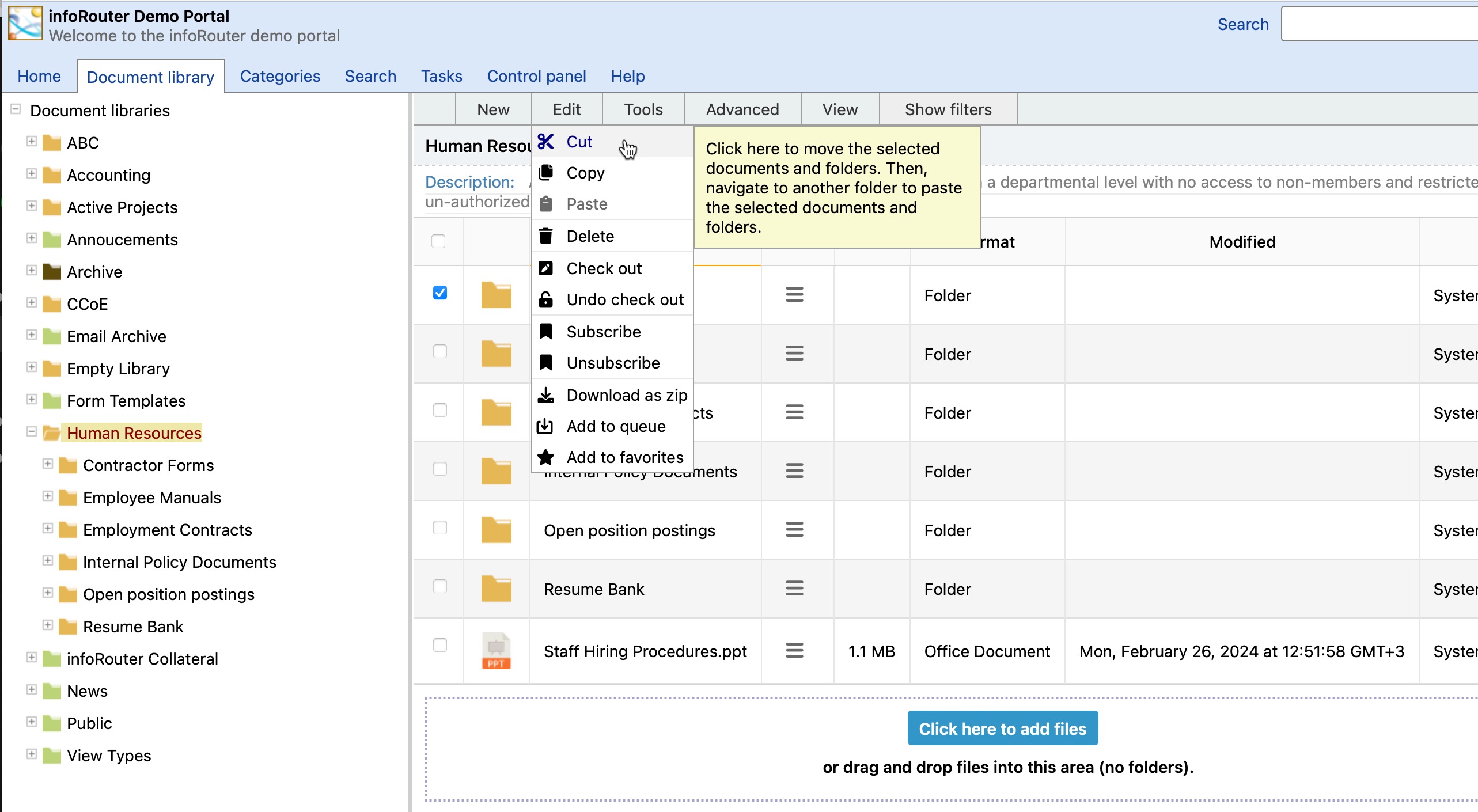
- Check the box next to the folder you want to move
-
Go to Edit → Cut
-
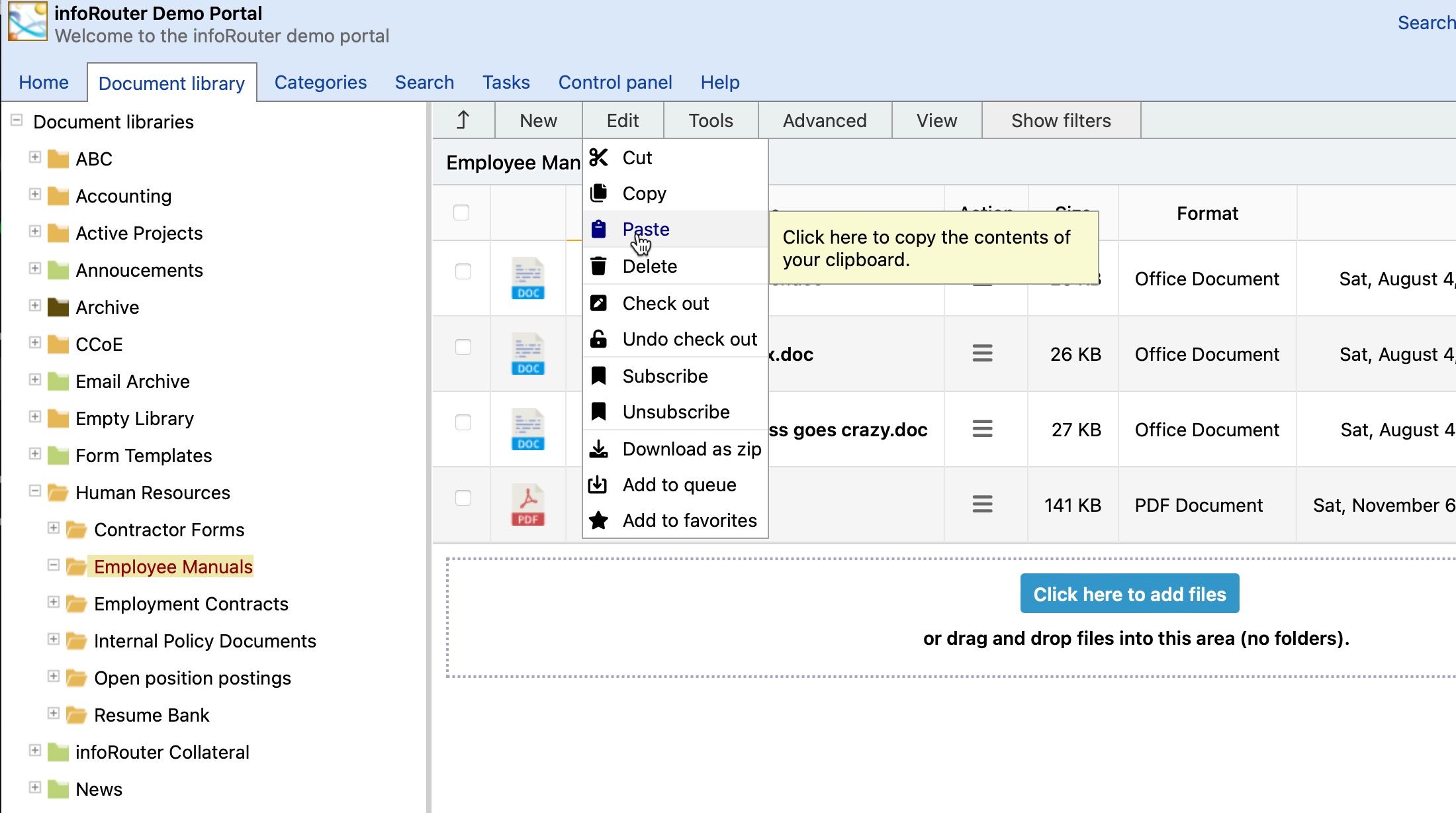
Navigate to the destination location
-
Go to Edit → Paste
-
Confirm the action when prompted
Required Permissions
| Location | Required Permission |
|---|---|
| Source folder | Full Control (you're deleting from here) |
| Destination folder | Add or Change (you're creating here) |
Restrictions
Libraries Cannot Be Moved
Root-level folders (Libraries) cannot be moved. Only subfolders within libraries can be moved.