Library Policies
Library Policies allow System Administrators and Library Managers to control how infoRouter behaves on a per-library basis. Policies define rules for what operations are allowed and who can perform them.
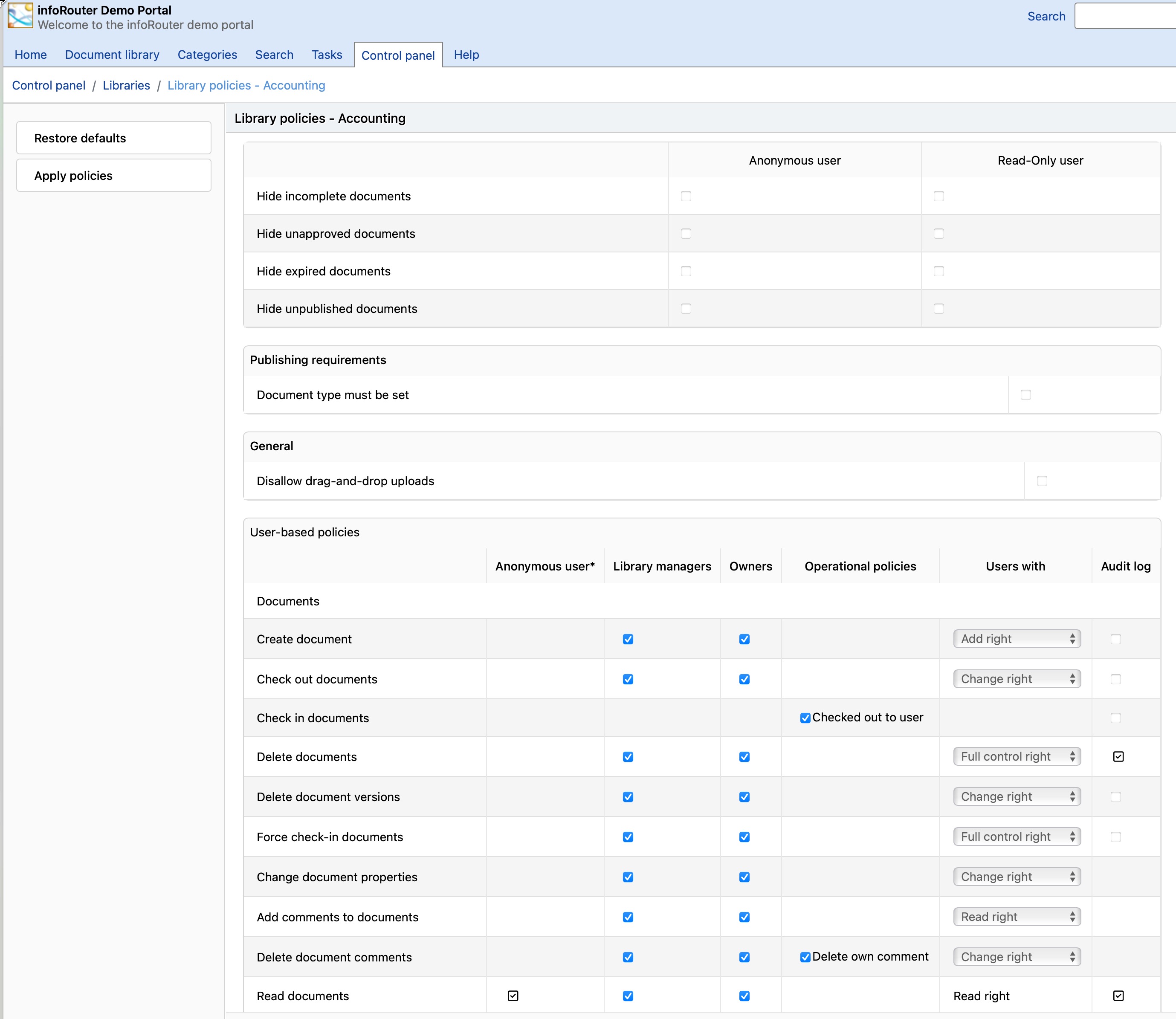
Accessing Library Policies
- Navigate to the Control Panel
- Click Libraries
- Select a document library
- Click Library Policies in the left sidebar
Anonymous & Read-Only User Settings
Control what content is visible to anonymous and read-only users:
| Setting | Effect |
|---|---|
| Hide incomplete documents | Documents not marked complete are hidden |
| Hide unapproved documents | Documents not approved are hidden |
| Hide expired documents | Expired documents are hidden |
| Hide unpublished documents | Unpublished documents are hidden |
Publishing Requirements
| Setting | Effect |
|---|---|
| Document type must be set | Documents without an assigned type (other than "generic") won't be published |
Learn more: Publishing
Policy Parameters
Configure who can perform these operations:
Document Operations
| Policy | Description |
|---|---|
| Create Documents | Who can upload/create documents |
| Delete Documents | Who can delete documents |
| Delete Versions | Who can remove document versions |
| Checkout Documents | Who can check out documents |
| Check In Documents | Who can check in documents |
| Force Check-In | Who can force check-in of others' documents |
| Change Document Properties | Who can modify document metadata |
| Read Documents | Who can view documents |
Folder Operations
| Policy | Description |
|---|---|
| Create Folders | Who can create folders |
| Delete Folders | Who can delete folders |
| Change Folder Properties | Who can modify folder settings |
| Set Folder Rules | Who can configure folder rules |
| Compact Folders | Who can compact folders |
Security Operations
| Policy | Description |
|---|---|
| Read Security List | Who can view security assignments |
| Change Security | Who can modify security |
| Change Ownership | Who can transfer document ownership |
Metadata & Classification
| Policy | Description |
|---|---|
| Add/Change Meta Data | Who can modify custom properties |
| Delete Meta Data | Who can remove custom properties |
| Edit Document Classification | Who can change classification levels |
| Change Retention Period | Who can modify retention settings |
Tasks & Workflow
| Policy | Description |
|---|---|
| Read Document Tasks | Who can view tasks |
| Add/Remove Document Tasks | Who can manage tasks |
| Submit/Remove Approval | Who can submit for approval |
Comments & Subscriptions
| Policy | Description |
|---|---|
| Read Document Comments | Who can view comments |
| Add Comments to Documents | Who can add comments |
| Delete Document Comments | Who can remove any comment |
| Delete own comments | Who can remove their own comments |
| Read Subscriber List | Who can see subscribers |
| Add/Remove Subscriptions | Who can manage subscriptions |
Logs & Auditing
| Policy | Description |
|---|---|
| Read Document View Log | Who can see view history |
| Read Document SOX Logs | Who can access SOX compliance logs |
| Read Document ISO Logs | Who can access ISO compliance logs |
| Read Document Classification Logs | Who can see classification history |
| Delete Classification Logs | Who can remove classification logs |
| Read Document Review Logs | Who can see review history |
Audit Logging
Enable Audit Logging
Each policy has an "Audit Logging" checkbox. When checked, infoRouter logs the selected event for compliance and tracking purposes.
View audit logs from:
- Document Properties → Logs & Reports (document-level)
- Folder Properties → Logs & Reports (folder-level)
- Control Panel (system-wide)
Example Use Case
Restricting Document Deletion
By default, Library Managers, System Administrators, and users with Full Control can delete documents. To restrict deletion to only administrators:
- Find the Delete Documents policy
- Set the permission dropdown to blank
- Now only administrators can delete documents in this library