Checking Documents In
The Check In process creates a new version of a document and releases it back to the repository. This is a core feature of infoRouter's version control system.
Version Control
Every time you check in a document, infoRouter creates a new version. You can always revert to any prior version if needed.
How to Check In a Document
Step 1: Access Check In
Use one of these methods:
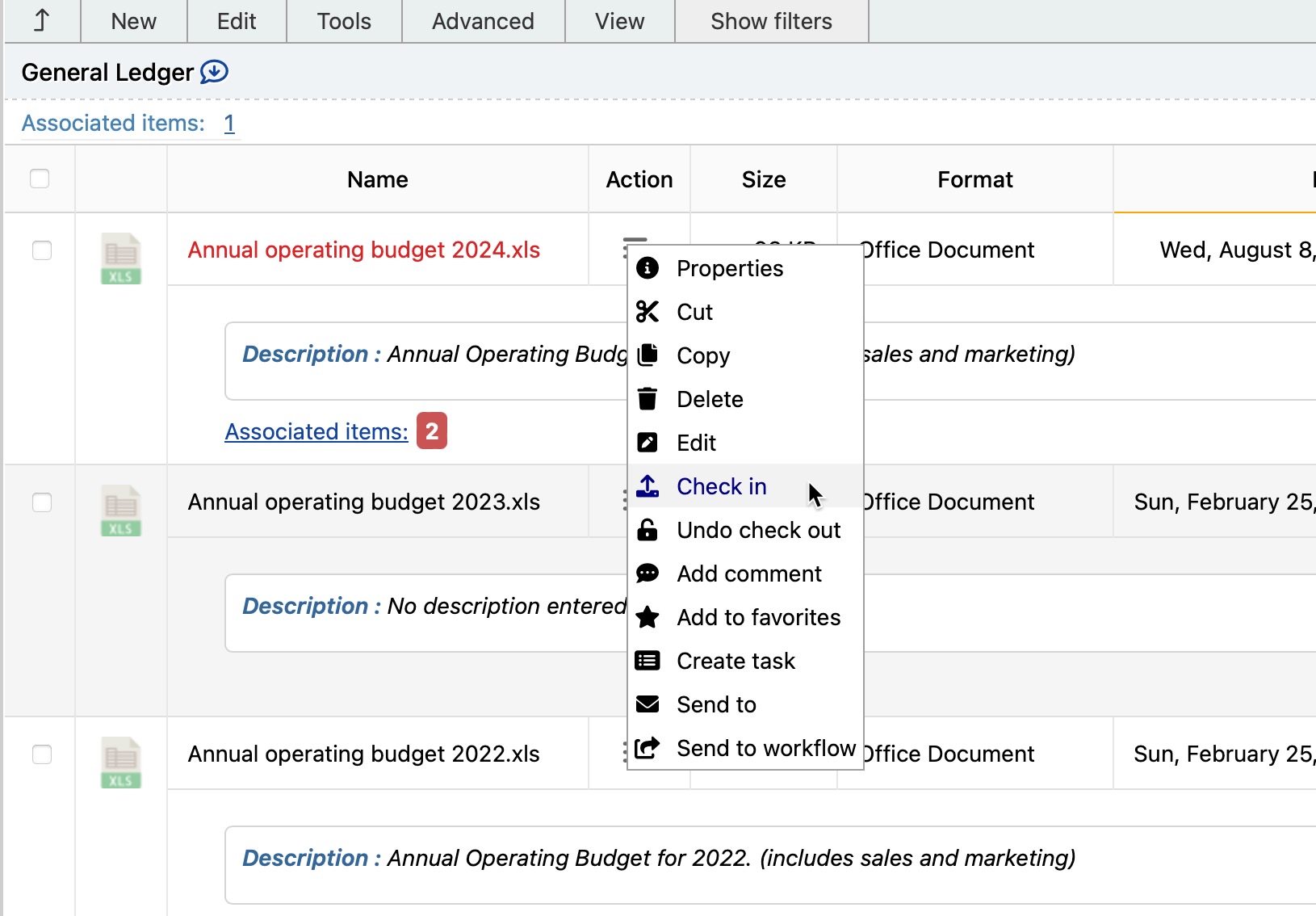
- Click the Action icon and select Check In
- Select the document checkbox, then go to Edit → Check In
Step 2: Complete the Check In Form
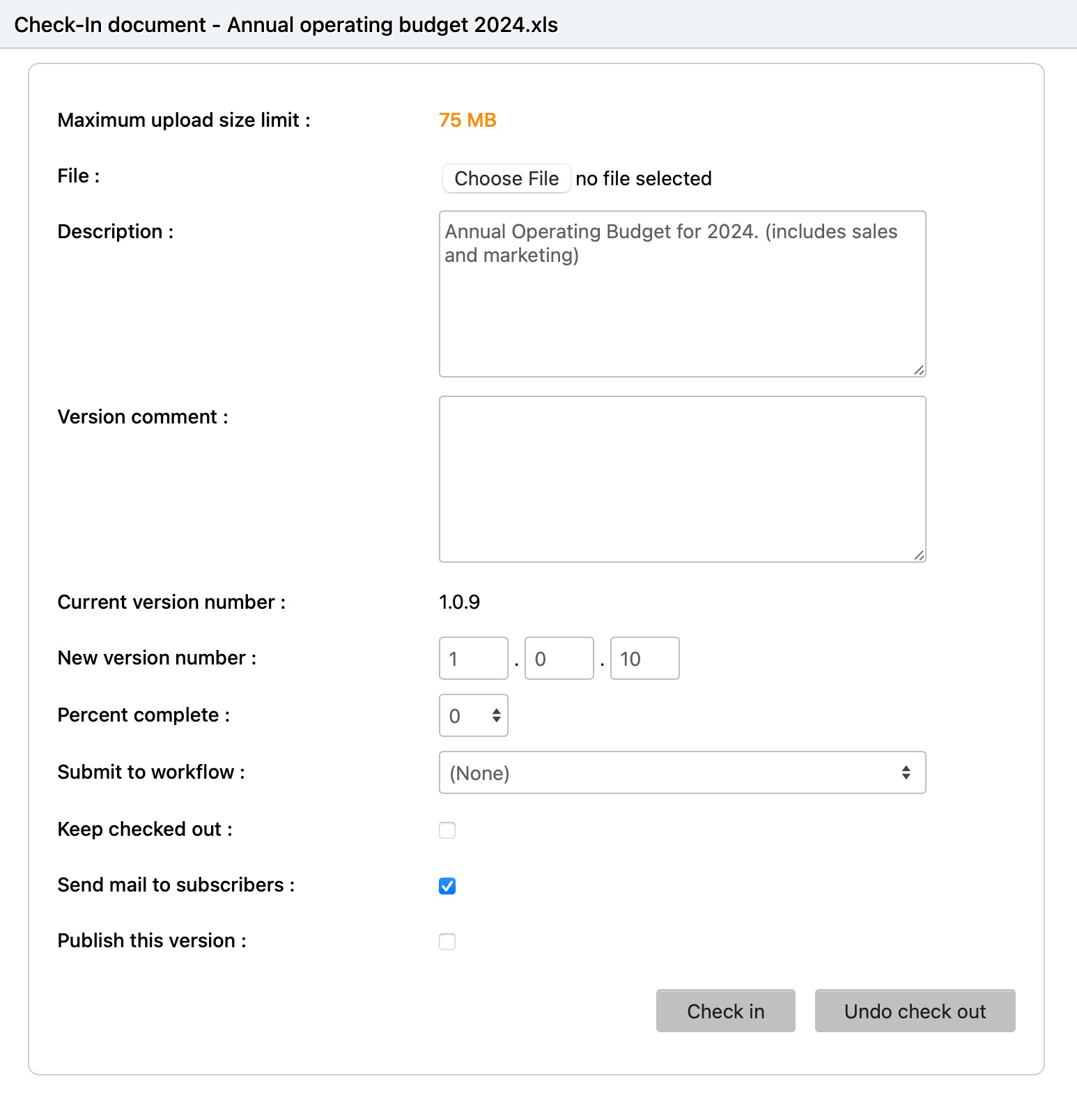
| Field | Description | Required |
|---|---|---|
| File | Click Browse to select your modified file | Yes |
| Comments | Notes about changes made to the document | No |
| Update Instructions | Information included in email notifications to subscribers | No |
| Percent Complete | Progress indicator for the document | No |
| Completion Date | Mark when document will be complete | No |
| Keep checked out | Release a new version but continue editing | No |
| Send Mail to Subscribers | Notify subscribers about the update | No (checked by default) |
Step 3: Submit
Click the Check In button to complete the process.
Completion Status
Setting a document to 100% complete or adding a completion date will prevent further edits until the completion date is reset or percent complete is changed.
Controlling Notifications
If you have more work to do and don't want to notify subscribers yet, uncheck "Send Mail to Subscribers" before checking in.
Force Check In
Force Check In allows authorized users to unlock a document that is checked out to someone else.
Who Can Force Check In?
| Role | Can Force Check In |
|---|---|
| Document Owner | Yes |
| Users with Full Control rights | Yes |
| System Administrator | Yes |
| Administrators group members | Yes |
| Library Manager | Yes |
How to Force Check In
- Select the checked out document
- Click the Action icon → Properties
- Scroll to the "Checked out by" section
- Click the Check In icon
- Confirm the force check in action
Use With Caution
Force Check In will discard any changes the original user may have made to their local copy. Use this feature only when necessary.