Advanced Search
The Advanced Search screen allows you to specify multiple search criteria to find documents stored in infoRouter.
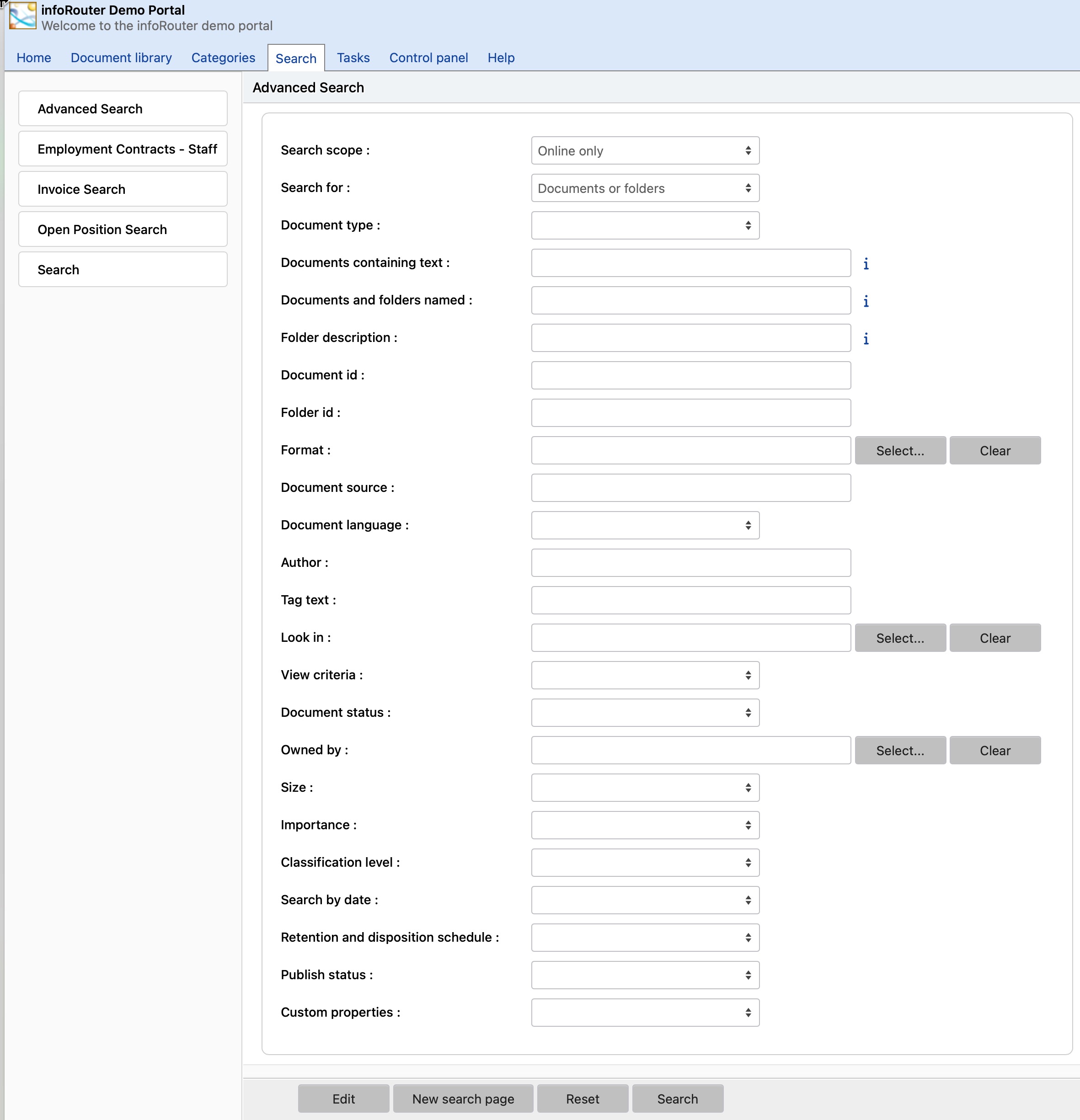
How to Perform an Advanced Search
- Click on the Search tab
- The Advanced Search window will appear
- Specify one or more search criteria (described below)
- Click the Search button
Saved Searches
Click on any "Saved Search" link on the left side of the screen to use predefined search templates.
Search Criteria
Search Scope
Limit your search based on document location:
| Option | Description |
|---|---|
| Online Only | Search only active documents (default) |
| All Documents | Search both online and archived documents |
| Archive Only | Search only archived documents |
| Online Including Hidden Libraries | Include documents in hidden libraries |
Search For
Limit your search to specific object types:
| Option | Description |
|---|---|
| Documents Only | Return only documents |
| Folders Only | Return only folders |
| Specific Document Type | Return only documents of a chosen type |
Text Search Options
Documents Containing Text
Search for documents containing specific text in their body or metadata.
Full-Text Search
Results are returned in rank order based on relevance. Security permissions are automatically applied — you'll only see documents you have at least Read permission for.
See also: Ignored Keyword List
Documents and Folders Named
Search by file or folder name. Use wildcards for partial matches:
| Pattern | Example | Matches |
|---|---|---|
Acc* |
Accounting.doc | Names starting with "Acc" |
*ing.doc |
Accounting.doc | Names ending with "ing.doc" |
*.doc |
Any .doc file | All Word documents |
Filter Options
By Owner and Location
| Filter | Description |
|---|---|
| Document ID | Search by infoRouter's internal document ID |
| Owned By | Find documents created by a specific user |
| Look In | Restrict search to a specific folder and its subfolders |
| Document Status | Filter by Checked In or Checked Out status |
By Date
Select a date criteria type:
- Date created
- Register date
- Date modified
- Completed on
- Expiration date
- Retain until
- Declassify on
- Downgrade on
- Disposition date
- Cut-off date
- Last/Next ISO/Periodic review date
Date range options:
| Option | Description |
|---|---|
| Between | Specify a start and end date |
| In the past | Specify days, weeks, months, or years |
By Document Properties
| Filter | Description |
|---|---|
| Size | Documents at least or at most a set size (in KB) |
| Importance | Low, Normal, High, or Vital |
| Classification Level | No Markings, Declassified, Classified, Secret, Top Secret |
| Document Format | Specific file type (HTML, PDF, etc.) |
| Document Source | Original source of the document |
| Document Language | Language the document was written in |
| Author | Original author (not the person who uploaded it) |
| Tag Text | Documents tagged with specific text |
| Publish Status | Published or unpublished documents |
By Retention Schedule
Filter documents based on their assigned Retention and Disposition schedule.
Custom Properties Search
Search documents by their custom property values:
- Select a custom property from the dropdown
- The page refreshes to show fields for that property
- Enter your search criteria
- Repeat for additional fields as needed
- Click Search
View Criteria
| Option | Description |
|---|---|
| Documents I have not viewed | Documents you haven't opened yet |
| Updated documents | Documents changed since you last viewed them |
| Unchanged documents | Documents that haven't changed since you last viewed them |